In this guide i will show you how to install, uninstall and update packages on your Linux Ubuntu system. There are several different ways of installing and upgrading packages.(programs, applications) They are: The Synaptic Package Manager, The Update manager, The apt-get command and downloading and installing them manually. You may need to use the “sudo” command with the commands that are in this guide if you keep getting permission denied errors. To use it just type it like this:
sudo apt-get options
Then when prompted put in your password and hit enter. Where options is the different options that you put after the apt-get command.
First we’ll have a look at installing packages using the apt-get command. First you will need to update the package list. This is basically a list of all the packages that you can install and the reason you need to update the package list is so you can get the latest versions of the packages. You can do this by typing this into the terminal and hitting enter:
apt-get update
To upgrade any packages that have newer versions available type this:
apt-get upgrade
To download and install a package from the Ubuntu online repository all you need to do is open a terminal and type in this:
apt-get install packagename
Where packagename is the name of the package you want to install. To remove a package type:
apt-get remove packagename
The Synaptic Package Manager is like a graphical apt-get command. With it you can install, upgrade and uninstall thousands of packages. This is the easiest way to install, upgrade and uninstall packages if you are new to Linux.
On the left are filters which you can use to filter the packages into category's. On the upper right section is the package list which lists all the packages that's in the selected category. The bottom right section is where a description is of the package that is selected.
To install a package all you need to do is select the package you what to install by clicking in the small check box to the left of the package name and then selecting “mark for installation” from the drop down menu. To remove a package click on the small check box to the left of the package name and select “Mark for removal”. Then when your done click the “Apply” button and in the window that comes up simply click “Apply”.
The Software Updater just handles updates. This is the easiest way to keep your system up to date.
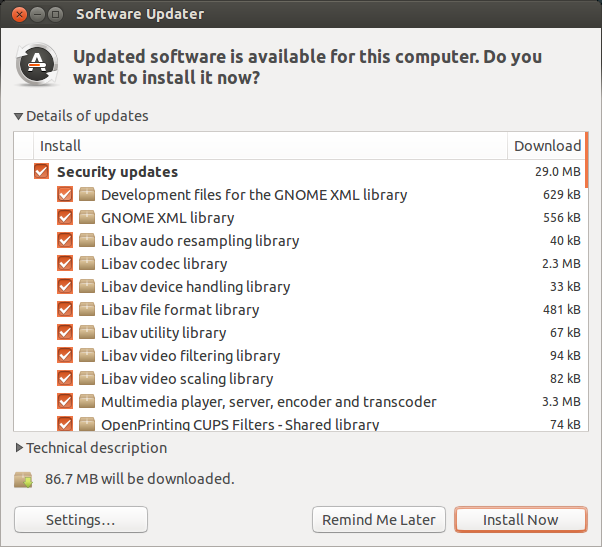
The Software updater will automatically check for any updates and if there are any updates for your system they will be listed in the box in the middle of the window. Then all you do is click the “Install Now” button to install the updates.
Last we’ll have a look at manually downloading and installing packages. Ubuntu is based on Debian GNU/Linux so the package format that it uses is .deb. To install .deb packages you will either need Gdebi (A graphical tool to install .deb packages. The easy way.) or you will need to use the dpkg command.( The harder way.)
The Gdebi tool normally come with the standard Ubuntu install so you should already have it installed on your system. If not then just install it like so:
sudo apt-get install gdebi
And that should install the Gdebi tool.
To use the Gdebi tool to install a .deb package all you need to do is download the .deb package you want to install and then double click on the .deb package in the file browser window. Then just click the “install package” button. As you can see there is three tabs. Description, Details and Included files. All fairly self explanatory.
To install .deb packages with the dpkg command all you need to do is open a terminal window and type in this:
dpkg -i filename.deb
Where filename is the name of the package you want to install. To remove a package with dpkg type this:
dpkg -r packagename
Where packagename is the name of the package that you want to remove.
That’s all. now you should be able to keep your system up to date and be able to install and remove packages on your system.
Welcome to my main blog. A place I'll post Linux, PC hardware/software related stuff and How To's from time to time too. Maybe other random stuff too.
Showing posts with label How To. Show all posts
Friday, May 16, 2014
How To: Checking Your Temperatures In Linux
In this How To i will show you how to check your temperatures in Linux. This works on all Debian based Linux distros. You will need to install two packages to read your temps. These are: lm-sensors and hddtemp. To install them type this into a terminal:
sudo apt-get install lm-sensors hddtemp
And type in your password when prompted. Once they've installed run this command:
sudo sensors-detect
and type in you password when prompted. This command scans your computer for any sensors it can find. It will ask you whether you want to scan for different types of sensors. Say yes to all these questions. When it's done it will show a list of drivers that are needed for the sensors that it finds. It will ask if you want to add these drivers to your "/etc/modules" file. Say yes here. Now when you type in this command:
sudo sensors
And type in your password when prompted. It should display the temperatures of all the sensors it found as well as any fan speed sensors.
To use hddtemp just simply run this command (and type in your password when prompted.) and it should display the temperature of your hard disk:
sudo hddtemp /dev/sda
Note: This part "/dev/sda" might be different on your computer. If "sda" doesn't work try "hda". Also if you have multiple hard drives then to check you second one replace "sda" with "sdb". Linux orders hard drives alphabetically so your first hard drive would be "sda" your second would be "sdb" your third "sdc" and so on.
And thats all there is to it.
sudo apt-get install lm-sensors hddtemp
And type in your password when prompted. Once they've installed run this command:
sudo sensors-detect
and type in you password when prompted. This command scans your computer for any sensors it can find. It will ask you whether you want to scan for different types of sensors. Say yes to all these questions. When it's done it will show a list of drivers that are needed for the sensors that it finds. It will ask if you want to add these drivers to your "/etc/modules" file. Say yes here. Now when you type in this command:
sudo sensors
And type in your password when prompted. It should display the temperatures of all the sensors it found as well as any fan speed sensors.
To use hddtemp just simply run this command (and type in your password when prompted.) and it should display the temperature of your hard disk:
sudo hddtemp /dev/sda
Note: This part "/dev/sda" might be different on your computer. If "sda" doesn't work try "hda". Also if you have multiple hard drives then to check you second one replace "sda" with "sdb". Linux orders hard drives alphabetically so your first hard drive would be "sda" your second would be "sdb" your third "sdc" and so on.
And thats all there is to it.
Saturday, April 20, 2013
How To: Gather information about your pc using the Linux command line.
Today I will show you how to use the Linux command line to find out all sorts of stuff about your PC hardware and software. There is also a bash script at the bottom of this post that will run all of these commands and save the information into a folder in your home directory and then create a archive of all the files.
Most of these commands should already be installed on your system however lm-sensors and hddtemp you probably need to install. I'll tell you how to install them when we get to them.
Right then on to the list.
sudo dmidecode
The command dmidecode gives you a lot of information about your PCs hardware which is read from the PC's BIOS. While not 100% reliable it's a good way to find out the more obscure stuff about your PC hardware. More information on dmidecode can be found here: http://www.nongnu.org/dmidecode/
sudo lspci
The lspci command lists all the PCI buses and devices connected to your PC, This can include USB controllers, The IDE controller, The SATA controller, As well as all the PCI/PCIe cards you have installed.
sudo lsusb
Similar to the lspci command the lsusb command lists all USB devices connected to the computer.
uname -a
This command displays the name of the PC, the kernel version, the date and time and architecture of your PC.
sudo lsmod
The command lsmod displays all the kernel modules that are currently loaded on your computer.
sudo fdisk -l /dev/sda
This command displays information about your hard drive like size, partitions and the file systems on the partitions as well as a few other details. Note that you may need to change the sda part depending on what type of hard drives you have as well as how many hard drives you have. Use the next command to find out the names of your hard drives.
df -hT
Similar the previous command this one lists all the filesystems mounted on the computer. This command is a good way to find out what your hard drives are called on Linux.
ifconfig -a
This command displays information about all the network interfaces active on your PC. Handy if you are setting up a network connection.
uptime
The command uptime displays the current time, how long the computer has been running, how many users are logged on and the load average for the past 1, 5 and 15 minutes.
echo $PATH
This command displays the contents of your $PATH variable. This is basically a list that the system uses to find executables when you call a command (like echo for example) so you don't have to go to the directory where the executables are before executing them.
To install the last two commands simply type this into a terminal:
sudo apt-get install lm-sensors hddtemp
And type in your password when prompted. Now you can use the "sensors" command and the "hddtemp" command. before you can use the "sensors" command you need to run:
sudo sensors-detect
This command scans your computer for any sensors it can find. It will ask you whether you want to scan for different types of sensors. Say yes to all these questions. When it's done it will show a list of drivers that are needed for the sensors that it finds. It will ask if you want to add these drivers to your "/etc/modules" file. Say yes here. Now you can run the sensors command:
sudo sensors
The sensors command displays the temperatures of all the temperature sensors as well as the RPM speed of any fan speed sensors.
sudo hddtemp /dev/sda
As the name might suggest this command displays the temperature of all the hard drives connected to your computer. As with the fdisk -l command you may need to change the sda part depending on what type of hard drives you have as well as how many hard drives you have. Use the df -hT command to find the names of your hard drives.
Finally here is that bash script that will run all of these commands and put the output of each of the commands into a file and put all of those files into a directory called PCinfo in your home folder. It will also create a .tar archive in the directory that the script is with all the files in.
I've also added a few commands that copy the syslog, apport.log and kern.log files as well as the fstab file into the PCinfo folder as well as these can also be useful for finding information about the Linux system.
Again where hard drive names are just simply replace them with your own. I may improve this at some point so if I do I'll try and remember to edit this post to update it as well as post it separately.
To use this bash script simply copy the following code and paste it into a empty text file and save it. Then you just need to allow it to be executed, To do this go to the directory the script file is in in a terminal and type this in:
chmod 755 PCinfo
Hit enter and it should now be able to be executed. What follows is the bash script:
#!/bin/bash
mkdir ~/PCinfo
sudo dmidecode > ~/PCinfo/dmidecode
sudo lspci > ~/PCinfo/pci_devices
sudo lsusb > ~/PCinfo/usb_devices
cp /var/log/syslog ~/PCinfo/
cp /var/log/apport.log ~/PCinfo/
cp /var/log/kern.log ~/PCinfo/
sensors > ~/PCinfo/sensors
uname -a > ~/PCinfo/uname
sudo lsmod > ~/PCinfo/lsmod
sudo fdisk -l /dev/sda > ~/PCinfo/disks
sudo hddtemp /dev/sda > ~/PCinfo/hddtemp
cp /etc/fstab ~/PCinfo/
df -hT > ~/PCinfo/disk_info
ifconfig -a > ~/PCinfo/network_info
uptime > ~/PCinfo/uptime
echo $PATH > ~/PCinfo/PATH
tar -cvf PCinfo.tar ~/PCinfo
Most of these commands should already be installed on your system however lm-sensors and hddtemp you probably need to install. I'll tell you how to install them when we get to them.
Right then on to the list.
sudo dmidecode
The command dmidecode gives you a lot of information about your PCs hardware which is read from the PC's BIOS. While not 100% reliable it's a good way to find out the more obscure stuff about your PC hardware. More information on dmidecode can be found here: http://www.nongnu.org/dmidecode/
sudo lspci
The lspci command lists all the PCI buses and devices connected to your PC, This can include USB controllers, The IDE controller, The SATA controller, As well as all the PCI/PCIe cards you have installed.
sudo lsusb
Similar to the lspci command the lsusb command lists all USB devices connected to the computer.
uname -a
This command displays the name of the PC, the kernel version, the date and time and architecture of your PC.
sudo lsmod
The command lsmod displays all the kernel modules that are currently loaded on your computer.
sudo fdisk -l /dev/sda
This command displays information about your hard drive like size, partitions and the file systems on the partitions as well as a few other details. Note that you may need to change the sda part depending on what type of hard drives you have as well as how many hard drives you have. Use the next command to find out the names of your hard drives.
df -hT
Similar the previous command this one lists all the filesystems mounted on the computer. This command is a good way to find out what your hard drives are called on Linux.
ifconfig -a
This command displays information about all the network interfaces active on your PC. Handy if you are setting up a network connection.
uptime
The command uptime displays the current time, how long the computer has been running, how many users are logged on and the load average for the past 1, 5 and 15 minutes.
echo $PATH
This command displays the contents of your $PATH variable. This is basically a list that the system uses to find executables when you call a command (like echo for example) so you don't have to go to the directory where the executables are before executing them.
To install the last two commands simply type this into a terminal:
sudo apt-get install lm-sensors hddtemp
And type in your password when prompted. Now you can use the "sensors" command and the "hddtemp" command. before you can use the "sensors" command you need to run:
sudo sensors-detect
This command scans your computer for any sensors it can find. It will ask you whether you want to scan for different types of sensors. Say yes to all these questions. When it's done it will show a list of drivers that are needed for the sensors that it finds. It will ask if you want to add these drivers to your "/etc/modules" file. Say yes here. Now you can run the sensors command:
sudo sensors
The sensors command displays the temperatures of all the temperature sensors as well as the RPM speed of any fan speed sensors.
sudo hddtemp /dev/sda
As the name might suggest this command displays the temperature of all the hard drives connected to your computer. As with the fdisk -l command you may need to change the sda part depending on what type of hard drives you have as well as how many hard drives you have. Use the df -hT command to find the names of your hard drives.
Finally here is that bash script that will run all of these commands and put the output of each of the commands into a file and put all of those files into a directory called PCinfo in your home folder. It will also create a .tar archive in the directory that the script is with all the files in.
I've also added a few commands that copy the syslog, apport.log and kern.log files as well as the fstab file into the PCinfo folder as well as these can also be useful for finding information about the Linux system.
Again where hard drive names are just simply replace them with your own. I may improve this at some point so if I do I'll try and remember to edit this post to update it as well as post it separately.
To use this bash script simply copy the following code and paste it into a empty text file and save it. Then you just need to allow it to be executed, To do this go to the directory the script file is in in a terminal and type this in:
chmod 755 PCinfo
Hit enter and it should now be able to be executed. What follows is the bash script:
#!/bin/bash
mkdir ~/PCinfo
sudo dmidecode > ~/PCinfo/dmidecode
sudo lspci > ~/PCinfo/pci_devices
sudo lsusb > ~/PCinfo/usb_devices
cp /var/log/syslog ~/PCinfo/
cp /var/log/apport.log ~/PCinfo/
cp /var/log/kern.log ~/PCinfo/
sensors > ~/PCinfo/sensors
uname -a > ~/PCinfo/uname
sudo lsmod > ~/PCinfo/lsmod
sudo fdisk -l /dev/sda > ~/PCinfo/disks
sudo hddtemp /dev/sda > ~/PCinfo/hddtemp
cp /etc/fstab ~/PCinfo/
df -hT > ~/PCinfo/disk_info
ifconfig -a > ~/PCinfo/network_info
uptime > ~/PCinfo/uptime
echo $PATH > ~/PCinfo/PATH
tar -cvf PCinfo.tar ~/PCinfo
Friday, July 8, 2011
How To: Get the disc out of a YLOD'ed PS3
Hello all. Well my PS3 YLOD'ed again for the second time today so i thought it would be fitting to post this today. As some of you may know when a PS3 does get the YLOD (Yellow Light Of Death) if you have a game disc in at the time it won't eject because the PS3 isn't on long enough for you to get it out. I found out how to get the disc out when i phoned Sony. So i thought i'd post this up here for people who didn't know how.
To get the disc out make sure the PS3 is off at the back. Then hold the eject button down and flick the power switch on the back on. The fan should come on very fast and the disc should pop out. Be sure to grab it quickly or it will go back in.
And thats it. now you know. If you have any questions please fell free to either comment on this post or email me.
To get the disc out make sure the PS3 is off at the back. Then hold the eject button down and flick the power switch on the back on. The fan should come on very fast and the disc should pop out. Be sure to grab it quickly or it will go back in.
And thats it. now you know. If you have any questions please fell free to either comment on this post or email me.
Subscribe to:
Posts (Atom)


